
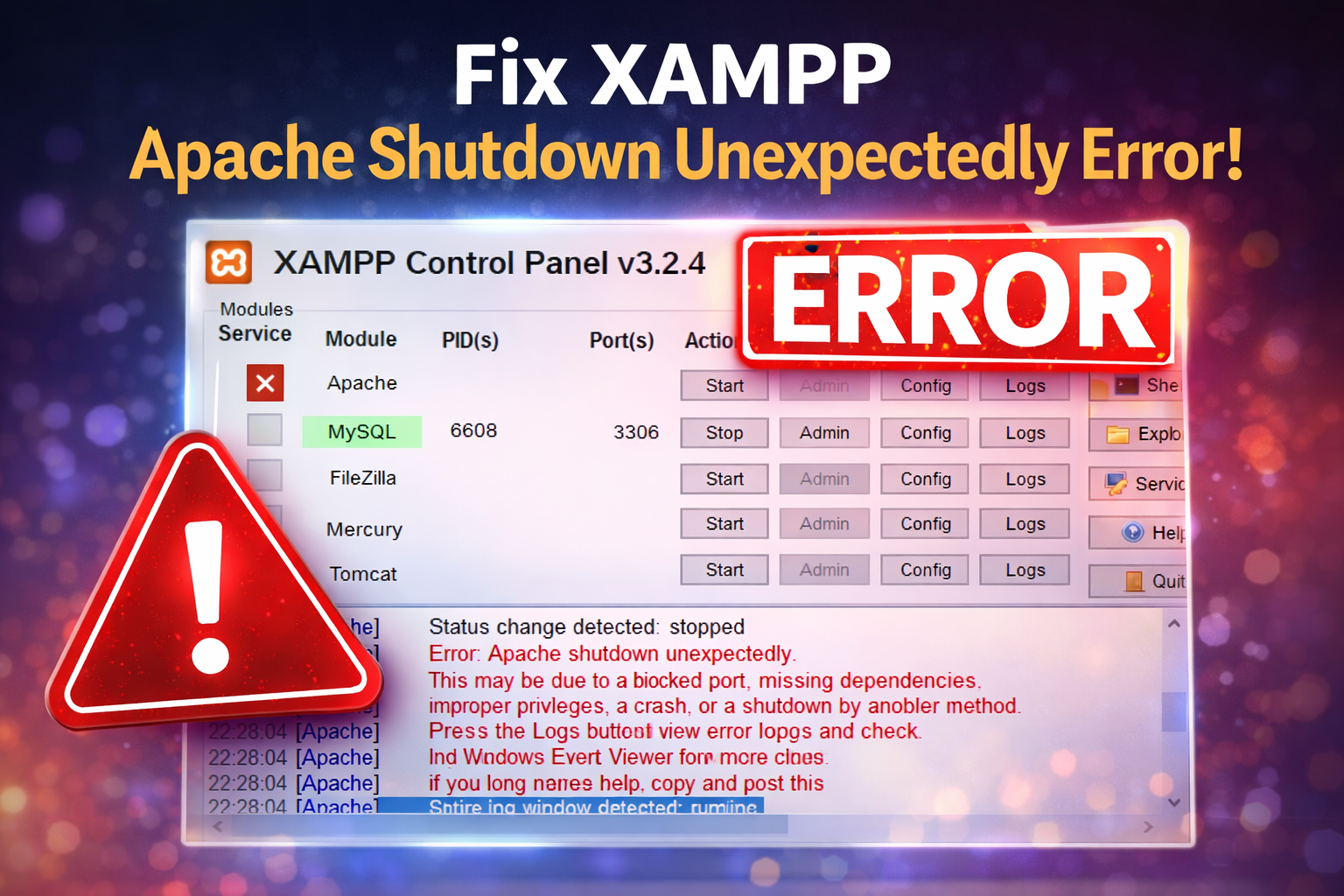
If you are using XAMPP and suddenly see the error “Apache shutdown unexpectedly”, don’t worry this is one of the most common issues faced by PHP developers, beginners, and even professionals.
In this complete guide, you’ll learn:
- Why this error happens
- How to identify the real cause
- Step-by-step solutions (with examples)
- Best practices to avoid it in the future
What Is the “Apache Shutdown Unexpectedly” Error?
When you start Apache from the XAMPP Control Panel and it immediately stops with a red error message, it usually means Apache failed to bind to its required ports or encountered a configuration issue.
Common Error Message:
Error: Apache shutdown unexpectedly.
This may be due to a blocked port, missing dependencies,
improper privileges, a crash, or a shutdown by another method.

[XAMPP Control Panel showing Apache error]
Why Does Apache Shutdown Unexpectedly?
Here are the most common reasons:
- Port 80 or 443 already in use
- IIS (Internet Information Services) is running
- Skype or Docker using the same ports
- Apache service already running in background
- Incorrect Apache configuration
- XAMPP not run as Administrator
Step 1: Check Which Port Is Causing the Issue
- Open XAMPP Control Panel
- Click on Netstat
- Look for ports 80 or 443
If these ports are listed as in use, Apache will not start.

[Netstat showing port 80 or 443 in use]
Step 2: Change Apache Port (Recommended Solution)
Changing the Apache port is the easiest and safest solution, especially for local development.
🔹 Edit httpd.conf
- Click Config → Apache → httpd.conf
- Find this line:
Listen 80
- Change it to:
Listen 8080
- Find:
ServerName localhost:80
- Change to:
ServerName localhost:8080
- Save the file
[httpd.conf file with port change]
Step 3: Update SSL Configuration (Important)
- Open Config → Apache → httpd-ssl.conf
- Find:
Listen 443
Change to:
Listen 4433
- Find:
<VirtualHost _default_:443>
Change to:
<VirtualHost _default_:4433>
- Save the file
[httpd-ssl.conf changes]
Step 4: Restart XAMPP as Administrator
- Close XAMPP completely
- Right-click XAMPP Control Panel
- Select Run as administrator
- Start Apache
If everything is correct, Apache will turn green.
[Apache running successfully]
Step 5: Open Apache in Browser
Open your browser and visit:
http://localhost:8080
If the XAMPP dashboard loads, the issue is fixed ✅
Alternative Solution: Stop Conflicting Services
If you want Apache to run on port 80, you must stop conflicting services.
Steps:
- Press Win + R → type
services.msc - Stop these services if running:
- World Wide Web Publishing Service
- IIS
- Docker
- Skype
- Restart XAMPP
⚠️ This method is not recommended for beginners.
How to Check Apache Error Logs
If Apache still doesn’t start:
- Click Apache → Logs → error.log
- Scroll to the bottom
- Check the latest error message
[Apache error.log file]
Best Practices to Avoid This Error in Future
- Always run XAMPP as Administrator
- Avoid using port 80 for multiple applications
- Use 8080 for local development
- Stop unused services
- Keep XAMPP updated
Frequently Asked Questions
Yes, port 8080 is widely used for local development and is completely safe.
No. Your projects will work normally, only the URL will change.
Yes, Apache and MySQL work independently.
Final Thoughts
The Apache shutdown unexpectedly error is frustrating, but once you understand the cause, it’s very easy to fix. By changing the Apache port or stopping conflicting services, you can resolve the issue in minutes.
This guide is suitable for:
- PHP beginners
- Students
- Web developers
- WordPress developers
If this guide helped you, feel free to share it ❤️


